|
Skinning with NST
|
|
The first thoughts you have about skinning should be when you are making the model , for this
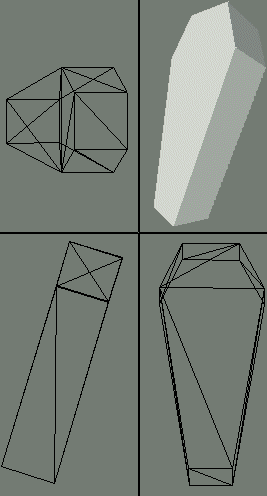
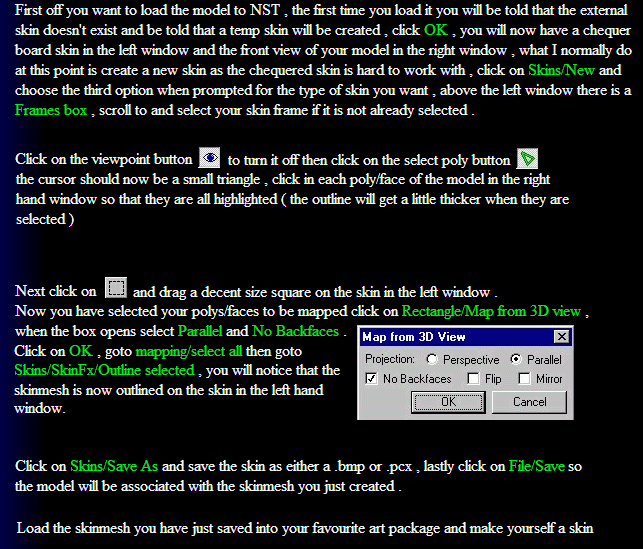
tutorial I will use an MD2 model I made a while ago and never got round to skinning , it's a coffin that leans against a wall and as it is an inanimate object there are only two frames to worry about , the first is the skin frame and the second is the frame that will be in the game , when making a model try and make the first frame like it is opened out flat , this is the easiest way I find of doing it but if you prefer you could make the model as it would appear in your game , then make another frame and flatten it out for skinning , it doesn't really matter which way you do it as long as you define the model frame when making the mdi file and you choose the skin frame when loading the model into NST . |
|
Skin frame
|
|
Model frame
|
|
SKINNING
|
|
First off you want to load the model to NST , the first time you load it you will be told that the external
skin doesn't exist and be told that a temp skin will be created , click OK , you will now have a chequer board skin in the left window and the front view of your model in the right window , what I normally do at this point is create a new skin as the chequered skin is hard to work with , click on Skins/New and choose the third option when prompted for the type of skin you want , above the left window there is a Frames box , scroll to and select your skin frame if it is not already selected . |
|
to turn it off then click on the select poly button
|
|
the cursor should now be a small triangle , click in each poly/face of the model in the right
hand window so that they are all highlighted ( the outline will get a little thicker when they are selected ) |
|
Now you have selected your polys/faces to be mapped click on Rectangle/Map from 3D view ,
when the box opens select Parallel and No Backfaces . |
|
Next click on
|
|
and drag a decent size square on the skin in the left window .
|
|
Click on the viewpoint button
|
|
Click on OK , goto mapping/select all then goto
Skins/SkinFx/Outline selected , you will notice that the
skinmesh is now outlined on the skin in the left hand
window.
|
|
Click on Skins/Save As and save the skin as either a .bmp or .pcx , lastly click on File/Save so
the model will be associated with the skinmesh you just created . |
|
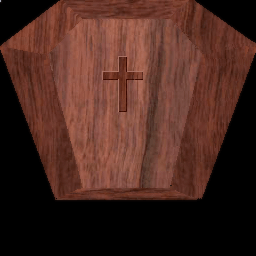
Load the skinmesh you have just saved into your favourite art package and make yourself a skin
|
|
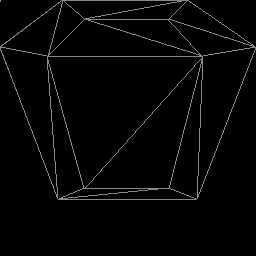
Skinmesh created by NST
|
|
Skin after I have worked on it
|
|
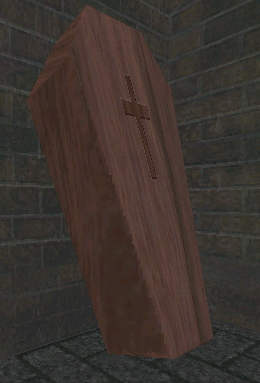
Object skinned and placed in a game
|