|
Make a booby trap/landmine
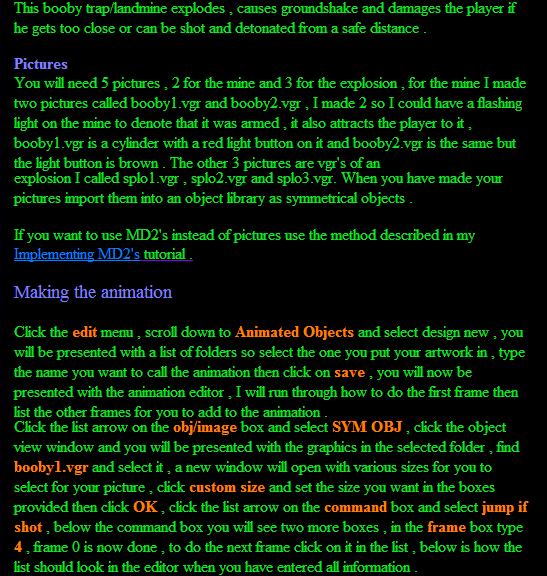
This booby trap/landmine explodes , causes groundshake and damages the player if
he gets too close or can be shot and detonated from a safe distance .
There are two tutorials on how to make a booby trap/land mine , one for GWEdit
and one for the DOS engine , if you are using the DOS engine click here , if you are using GWEdit see below .
Pictures
You will need 5 pictures , 2 for the mine and 3 for the explosion , for the mine I made
two pictures called booby1.vgr and booby2.vgr , I made 2 so I could have a flashing light on the mine to denote that it was armed , it also attracts the player to it , booby1.vgr is a cylinder with a red light button on it and booby2.vgr is the same but the light button is brown . The other 3 pictures are vgr's of an
explosion I called splo1.vgr , splo2.vgr and splo3.vgr. When you have made your
pictures import them into an object library as symmetrical objects .
If you want to use MD2's instead of pictures use the method described in my
Implementing MD2's tutorial .
Making the animation
Click the edit menu , scroll down to Animated Objects and select design new , you
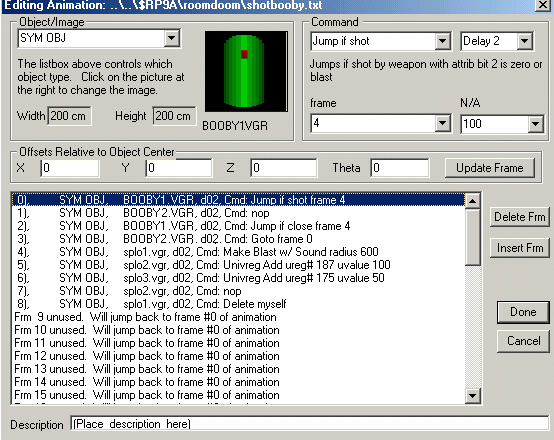
will be presented with a list of folders so select the one you put your artwork in , type the name you want to call the animation then click on save , you will now be presented with the animation editor , I will run through how to do the first frame then list the other frames for you to add to the animation .
Click the list arrow on the obj/image box and select SYM OBJ , click the object
view window and you will be presented with the graphics in the selected folder , find booby1.vgr and select it , a new window will open with various sizes for you to select for your picture , click custom size and set the size you want in the boxes provided then click OK , click the list arrow on the command box and select jump if shot , below the command box you will see two more boxes , in the frame box type 4 , frame 0 is now done , to do the next frame click on it in the list , below is how the list should look in the editor when you have entered all information . |
|
Bottom of page
|